Lulu
All projects

Case study

Opal

UX Design · Product Design · Desktop

A desktop workspace for product teams that turns meeting recordings into a shared transcript, captured decisions, and assigned tasks. View live prototype

Product Designer & Developer · Prototype · 2026 · Solo designer-developer · Desktop web

Tools·Figma · Cursor · Next.js

Opal preview
Overview

Overview

Opal started from a gap I kept hitting as a software engineer: there was no clean way to summarize a meeting from everyone’s point of view, or to turn a decision into a task without a tedious multi-step process. Notes went into docs, recaps went out over email, and tickets were created somewhere else — so the record of the meeting was scattered. I designed and built a single desktop workspace that records and transcribes meetings with AI, attaches tasks to those decisions, and lets engineering, design, and product share one dashboard instead of three follow-up rituals.

Problem

Meeting follow-through is a multi-tool chore — notes, email recaps, and tickets never land in one place.

Notes, email, and tasks splinter. People capture the meeting in a doc, send a recap, then recreate the work in a tracker. Nothing is the source of truth.

No shared summary. There isn’t a streamlined way to see the discussion from all contributors’ perspectives — engineering, design, and product each leave with a different version.

Decisions don’t become work. Turning what was agreed into an assigned task takes too many steps, so the administrative burden sits on whoever cares enough to do it by hand.

Goals

Goals

Cut that overhead with one tool: AI transcription of recordings, tasks created from decisions, a central dashboard to manage them, and a way to assign work to projects and the people across functions who own it.

Research

Research

I framed both the user problem (scattered notes, unpaid admin work) and the business problem (teams stay misaligned because follow-through is expensive). The design had to serve cross-functional contributors — designers, PMs, and developers — not a single role’s note-taking habit. I used my own engineering workflow as the brief, then looked at how existing boards and meeting tools split the same loop apart.

Problem framing

Wrote the user and business jobs from firsthand experience: reduce administrative overhead, and make eng / design / product look at the same record after a call.

Flow + competitive boards

Sketched the path from recording → transcript → decision → task. Modeled the task surface after Jira-style boards, because that’s where the work already tried to live — just not connected to the meeting.

Feature mapping

Listed what a product contributor actually needs to stay productive: daily meetings, a home dashboard, projects, people, files, and more than one way to see tasks. The hard part was not adding everything — it was naming the set.

3

places work used to scatter

3

task views for different working styles

1

live prototype built in Cursor

  • “We take notes in a doc, send an email recap, then recreate the tasks in another tool.”
  • “There’s no one place that holds what everyone heard in the meeting.”
  • “Turning a decision into a ticket is a multi-step chore.”

Alex Rivera

32 · Product Manager · San Francisco

“I leave a meeting sure we decided something, and two days later the notes are in a doc, the recap is in email, and the tickets still aren’t filed.”

  • Keep engineering, design, and product looking at the same record
  • Turn a decision into an assigned task without leaving the meeting
  • Notes, email follow-ups, and the task tracker are three different jobs
  • No shared summary from everyone who was in the room
Process

Process

The process was linear on purpose: frame → lo-fi in Figma → moodboard → hi-fi → working prototype in Cursor, then iterate on what the first build was missing. I collaborated with ChatGPT on visual direction while I locked structure myself, so AI helped explore look, not invent the IA.

  1. Frame the user and business problem from engineering work
  2. Lo-fi the flow in Figma; model the board after Jira
  3. Moodboard + ChatGPT for visual direction, then hi-fi and a Cursor prototype
  • Figma lo-fi: meetings desktop, decisions list, Jira-like task board
  • Moodboard with ChatGPT: purple brand, pastel glance cards, work-tool rail
  • Cursor prototype, then a second pass for People, Home, projects, files, search
Architecture

Architecture

The rail is the product: Home, Meetings, Tasks, Projects, People, Settings. Home is the central dashboard. Meetings is the daily breakdown — up next, calendar, today’s table. Tasks needed board, list, and calendar so different contributors can use the same work. Global search sits above all of it, because finding a meeting, task, project, or file should not depend on remembering which tab it lives in. People exists so engineering, design, and product are named in the system, not only in the recap email.

  • Home → glance cards, upcoming meetings, my tasks, projects
  • Meetings → daily breakdown: up next, calendar, today’s table
  • Meeting → recording, AI notes / transcript, decisions, linked tasks, files
  • Tasks → board, list, and calendar — assign to people and projects
  • Projects · People · Search → the rest of the workspace, not a second tool
Record the meeting
Read the AI transcript
Create a task from a decision
Assign it to a project
Find it again in search
Wireframes

Wireframes

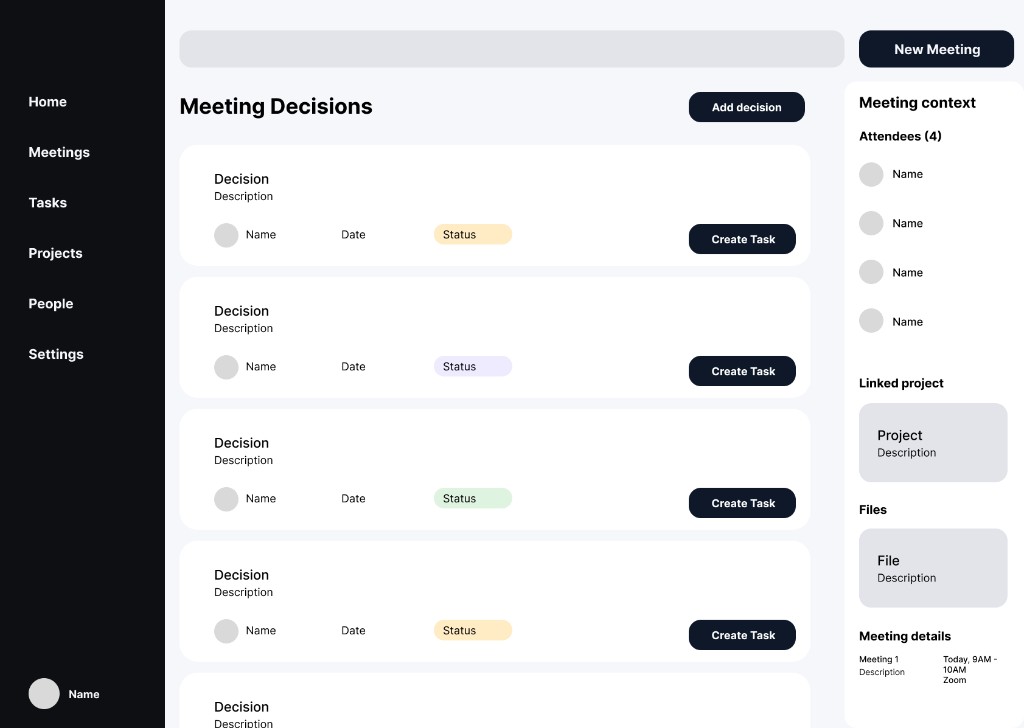
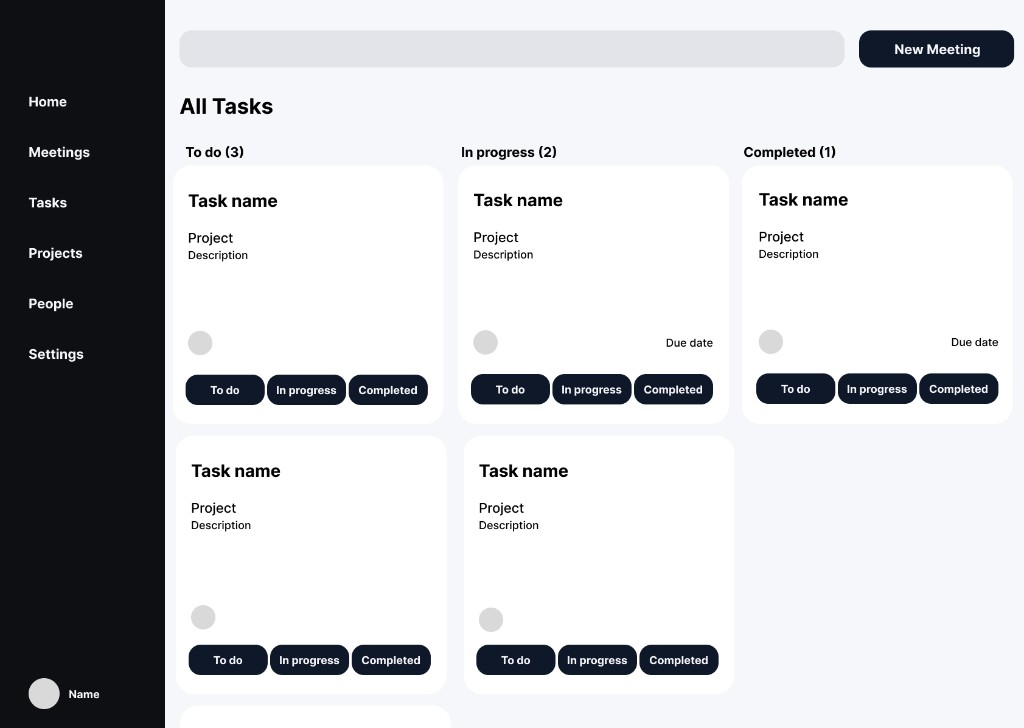
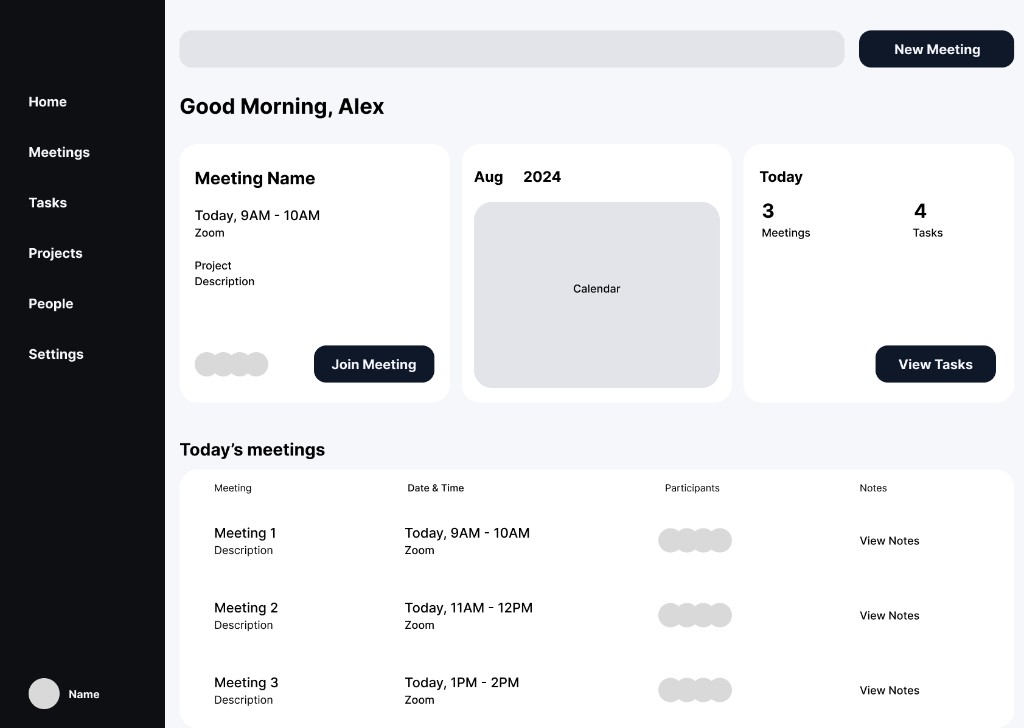
I sketched low-fidelity wireframes in Figma before any color: a dark sidebar for the jobs, a three-up meetings canvas (next event, calendar, today’s counts), and a table of the day underneath. That layout was the contract for “scan today, join what’s next, open notes.” Decisions sat on the meeting itself — owner, status, create task — so a call could become work without leaving the room. The task board was modeled on Jira so the destination for a decision would feel familiar. Hi-fi kept this skeleton and filled it — real calendar, people, Join meeting as the one solid action.

Low-fidelity desktop wireframe of Opal’s meetings home, with a dark sidebar, up-next meeting card, calendar, today stats, and a table of today’s meetings
Figma lo-fi — meetings as the day’s home: up next, calendar, today, then the table
Low-fidelity desktop wireframe of Opal meeting decisions, with a dark sidebar, a list of decisions with status chips and create-task actions, and a labeled meeting-context rail for attendees, linked project, files, and meeting details
Figma lo-fi — decisions on the meeting: owner, status, and create task in one list
Low-fidelity desktop wireframe of Opal’s all-tasks board, with to-do, in-progress, and completed columns, an assignee on each card, and status buttons
Figma lo-fi — Jira-like board: to do, in progress, completed, with status on the card
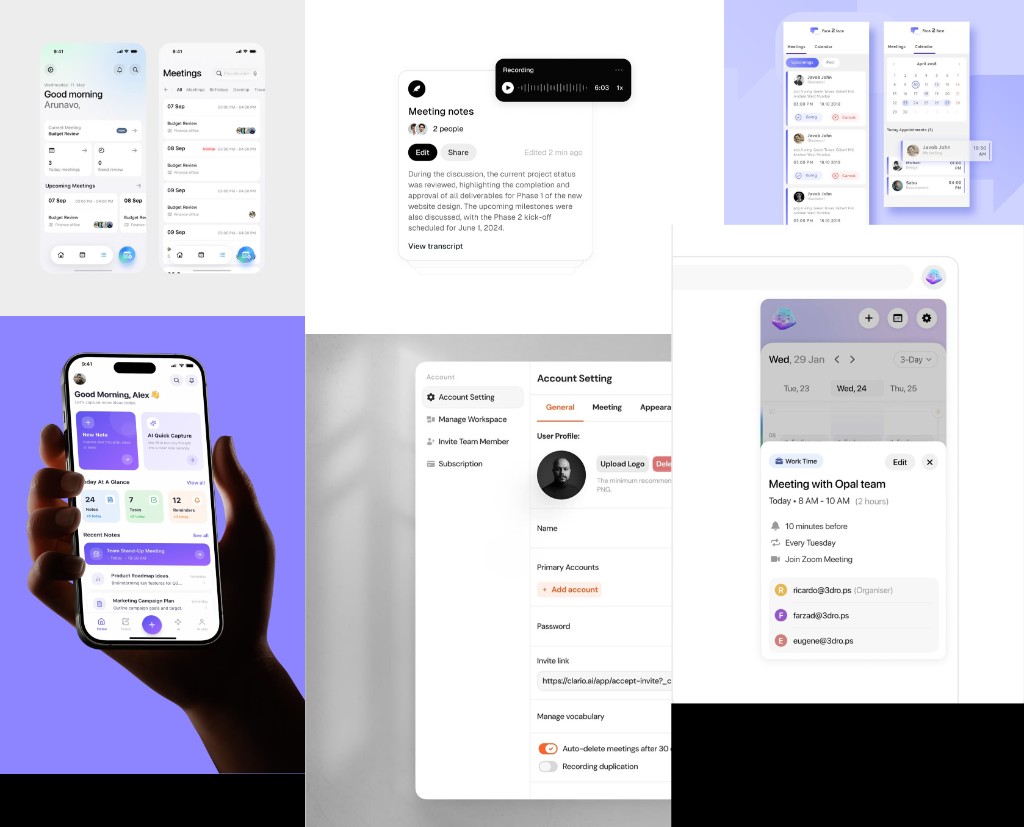
Opal moodboard combining pastel glance cards, meeting notes with a recording bar, calendar and meeting list, account settings, and a meeting detail card
Moodboard, explored with ChatGPT — purple brand, pastel glances, recording over notes
Style

Style

After the lo-fi, I built a visual style moodboard and used ChatGPT to explore directions: consumer notes apps (pastel glance cards, lilac calendars) against serious work software (black rail, white settings, named people on a meeting card). Opal is the overlap — gem-colored enough to feel like a product, structured enough to sit next to a Jira-like board all day.

Color palette

The moodboard’s purple became the brand mark and the calendar’s today state, not a wash over the whole UI. Black rail / white canvas came from the lo-fi and from the settings reference — it keeps the product feeling like software, not a notes toy. Glance cards stay pastel and separate (blue, mint, peach) so Home can be read in one pass, the way the phone mockup counted meetings, notes, and time.

Rail

#0E0F13

Sidebar, primary buttons

Opal

#7C5CF6

Brand, selected nav, today on the calendar

Canvas

#F4F5F8

App background

Glance mint

#E6F6E8

Open tasks at a glance

Glance peach

#FCF6F0

Needs review — work that is waiting

Typography

Titles are large and tight, like the wireframe’s Good Morning, Alex. Body copy stays small and cool-gray so a day’s table can hold names, times, and notes without shouting. Purple is reserved for selection and “up next” — never for every chip.

Inter

UI, tables, and meeting titles — dense enough for a desktop work surface

Voice

“Good morning, Alex.” “Here’s what’s on your schedule today.” “Join meeting.” The product talks like a desk, not a coach.
Hi-Fidelity

Hi-fidelity prototypes

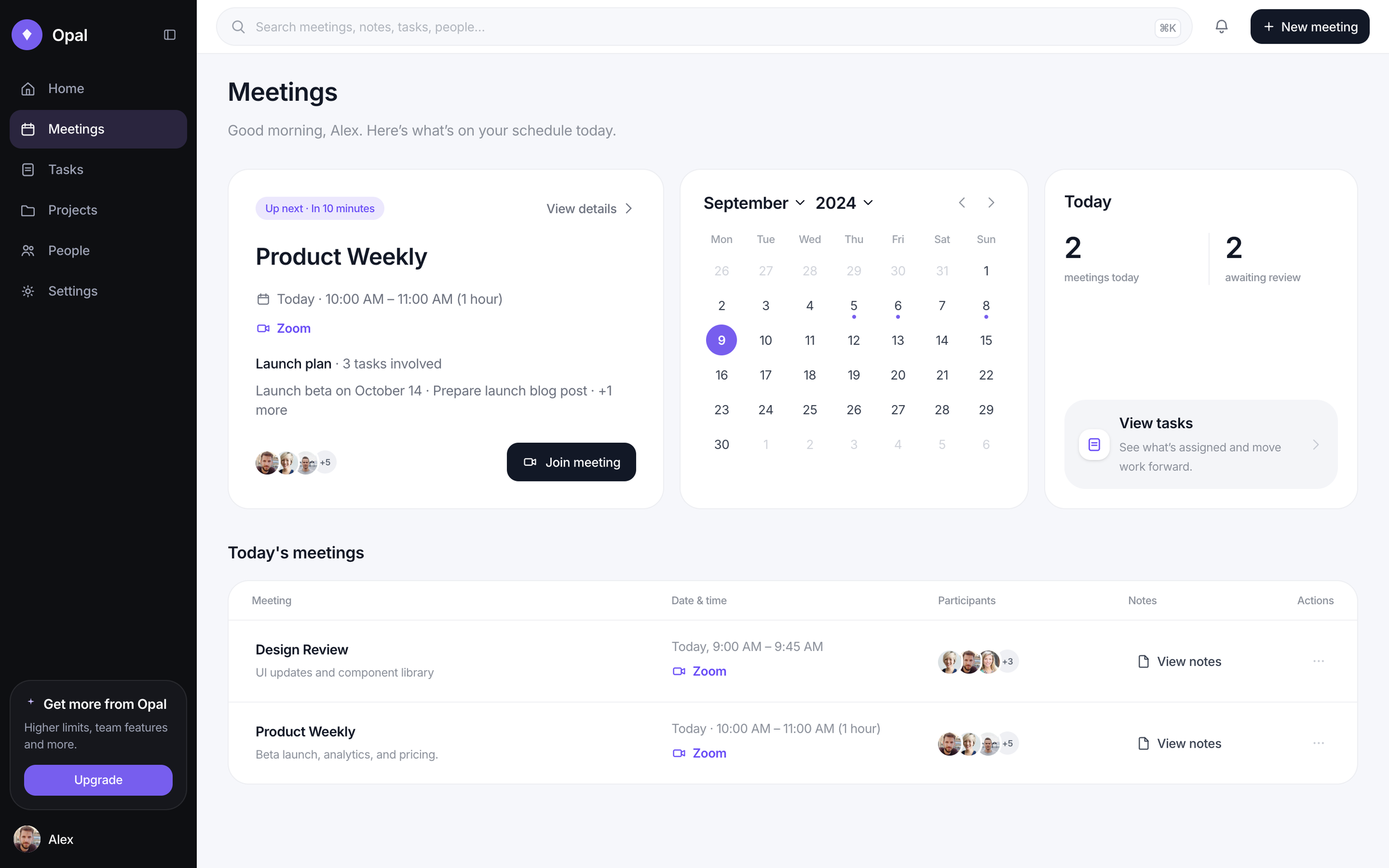
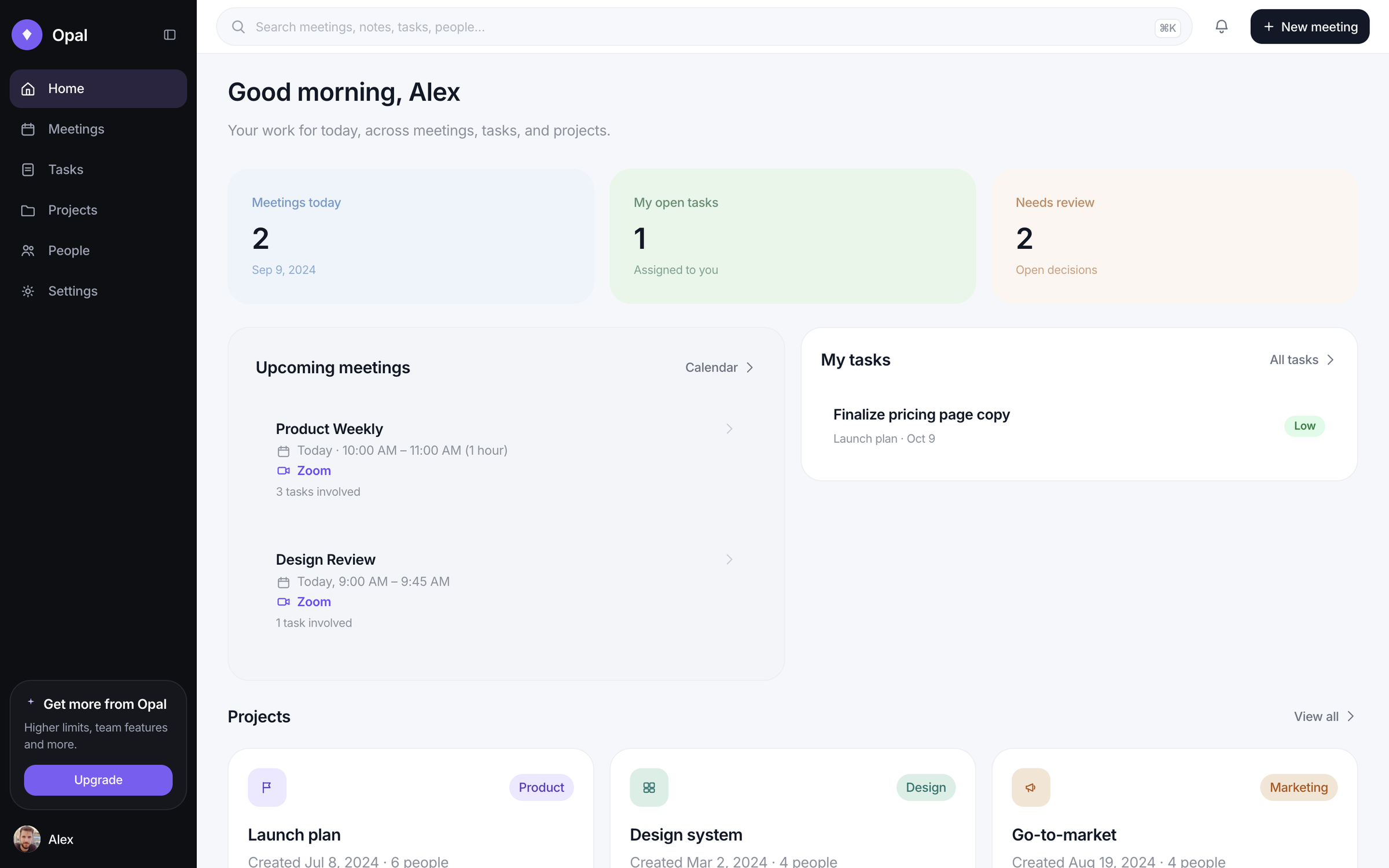
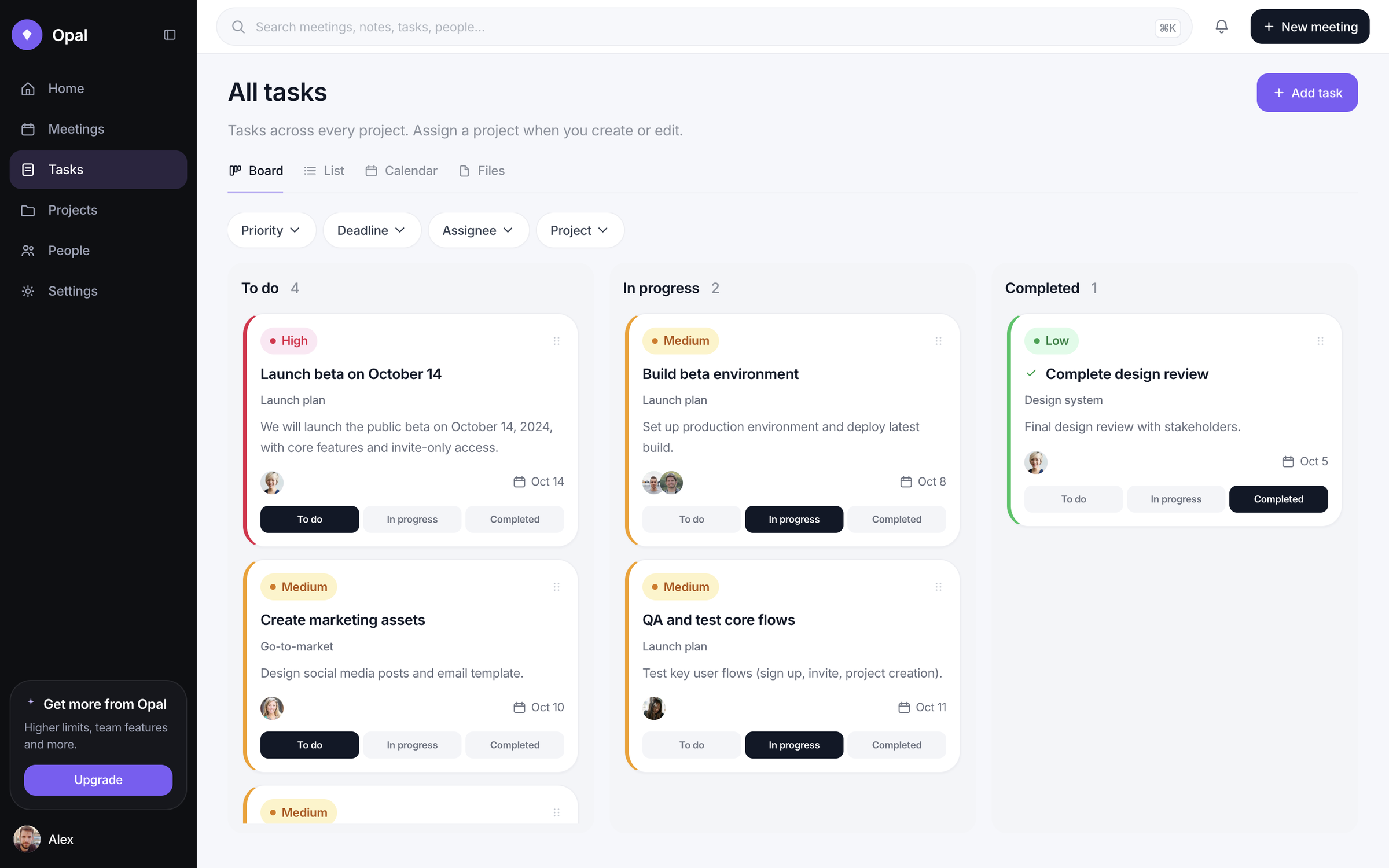
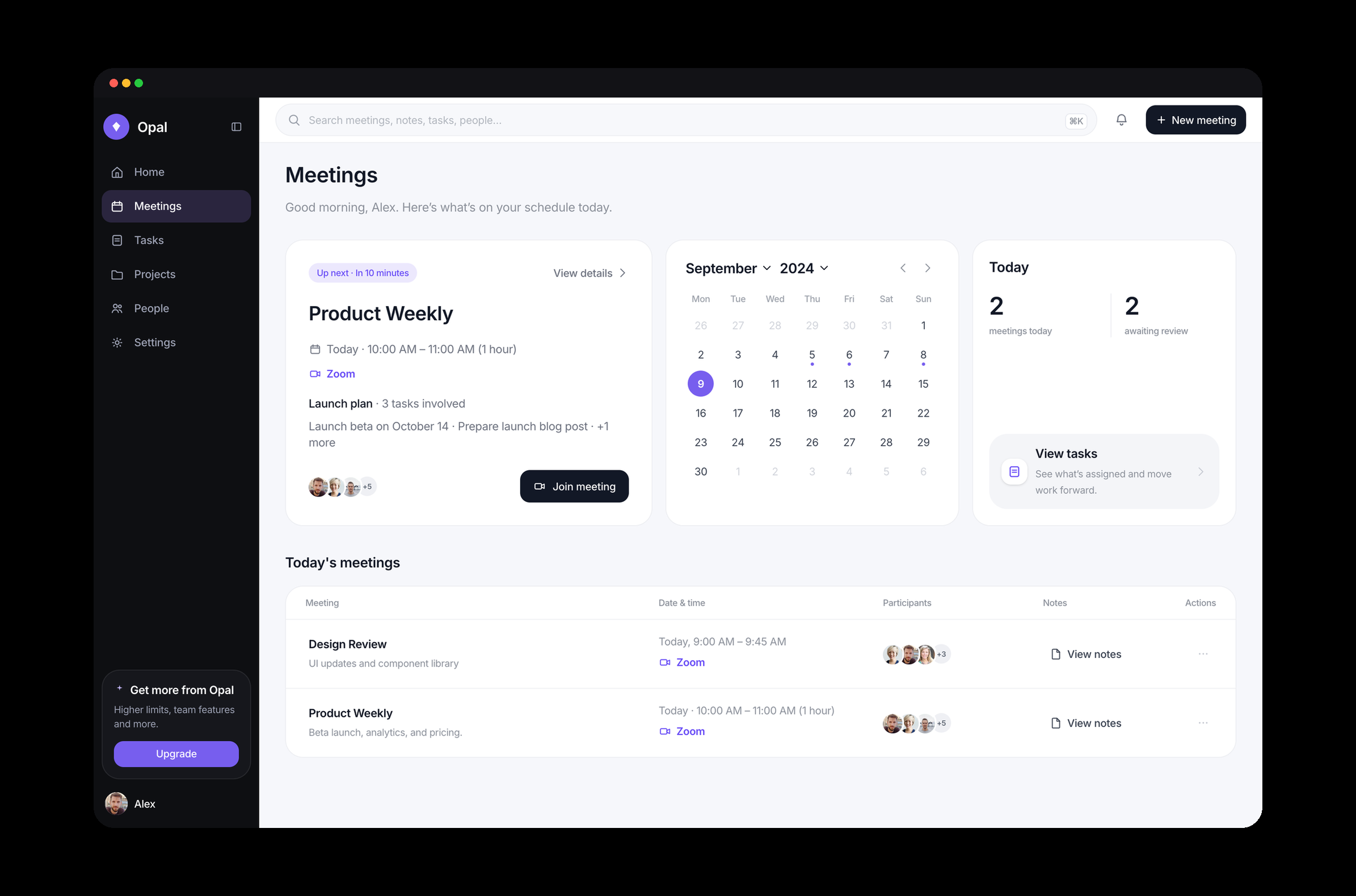
Hi-fidelity started as Figma mockups, then I used Cursor to build a working prototype. Meetings keeps the wireframe’s three-up scan. Home is the central dashboard the first build didn’t have. Tasks ship as board, list, and calendar, because one view would have locked the product to one kind of contributor. The live prototype is the demo — including AI-transcribed notes that can become assigned work.

Opal meetings desktop with an up-next Product Weekly card, September calendar, today stats, and a table of today’s meetings
Meetings — the daily breakdown the first prototype was missing
Opal home desktop with pastel glance cards for meetings, tasks, and review, plus upcoming meetings and projects
Home — the central dashboard, added after the first Cursor build
Opal tasks board with To do, In progress, and Completed columns, each card showing an assignee and due date
Tasks — Jira-like board, with list and calendar for other working styles
Solution

Solution

One loop instead of three tools: record and transcribe, make the decision a task, manage it on a dashboard, assign it to a project and a person.

AI notes that become work

Recordings transcribe into notes on the meeting. A decision can become a task there — no doc, no recap email, no second tracker to re-type it into.

A home dashboard and a daily breakdown

Home is the glance across meetings, tasks, and projects. Meetings is today: up next, calendar, and a table of the rest. Join and notes stay attached to the event.

Board, list, and calendar

Different contributors organize work differently. The task surface ships three views so a designer, a PM, and a developer can all use the same board.

People, projects, files, and search

Work is assigned to projects and to named people across functions. Files sit on the meeting. Global search finds a meeting, task, project, or file without hunting tabs.

Test

Testing

The first Cursor prototype was useful and incomplete. I treated the gaps as a second design pass, not as polish.

  • People was missing, so contributors across engineering, design, and product had no home in the product.
  • Meeting actions were redundant — too many ways to start or open the same thing.
  • The first build didn’t yet have a daily meeting breakdown, a central home, project organization, or file attachments.
  • Added People, Home, a daily meetings canvas, projects, and files.
  • Shipped board, list, and calendar on tasks so the board wasn’t the only mental model.
  • Added global search for meetings, tasks, projects, and files.
Impact

Impact

1

working prototype from Figma into Cursor

3

task views for different contributors

2

design passes after the first build

Conclusion

Reflection

Two challenges sat on top of the product ones. Guiding Cursor meant rewriting prompts until they were modular and explicit — interactions, hover states, responsive layout, visual consistency — or the generation drifted. And I had to map the exact feature set a product contributor needs to stay productive, without turning the rail into a junk drawer. If I had more time I would thicken the design system, go deeper on AI-assisted project management (permissions, org-wide workspaces, an analytics home for completion trends), and cut sub-menus so the hierarchy stays concise.

  • Steering Cursor with modular, explicit prompts when generation missed interactions or visual consistency.
  • Naming the feature set a contributor actually needs — then noticing People, Home, and files were still missing.
  • Keeping board, list, and calendar as one task system instead of three products.
  • AI is useful for transcription and for exploring a moodboard; the IA still has to be decided by hand.
  • A first prototype is a diagnostic: redundant buttons and a missing People tab were clearer in the build than in Figma.
  • Search and multiple task views are how cross-functional teams share one tool without sharing one working style.
  • Expand design system guidelines, and reduce sub-menus for a more minimal hierarchy.
  • Granular team permissions and organization-wide workspaces.
  • A fuller analytics dashboard on Home for performance and task-completion trends.

Building the working prototype — Figma to Cursor — so the demo is the product: record, transcribe, task, assign, search, instead of a slide of the idea.

Next

Canada Online Tutoring